
Information Technology Solutions

Staff password help resources

Helpful information before you begin

Which instructions do I use?

  • To claim your account for the first time or if you have forgotten your password, refer to the Claim your account / Forgot your password section for instructions.
  • To change your password at any time, or after you receive notification of an expiring password, refer to the Change your password section for instructions.

Claim your account / Forgot your password

NOTE: To create a secure and strong password that adheres to RRC Polytech’s password policy, please open the Create a strong password and Password policy webpages for information.

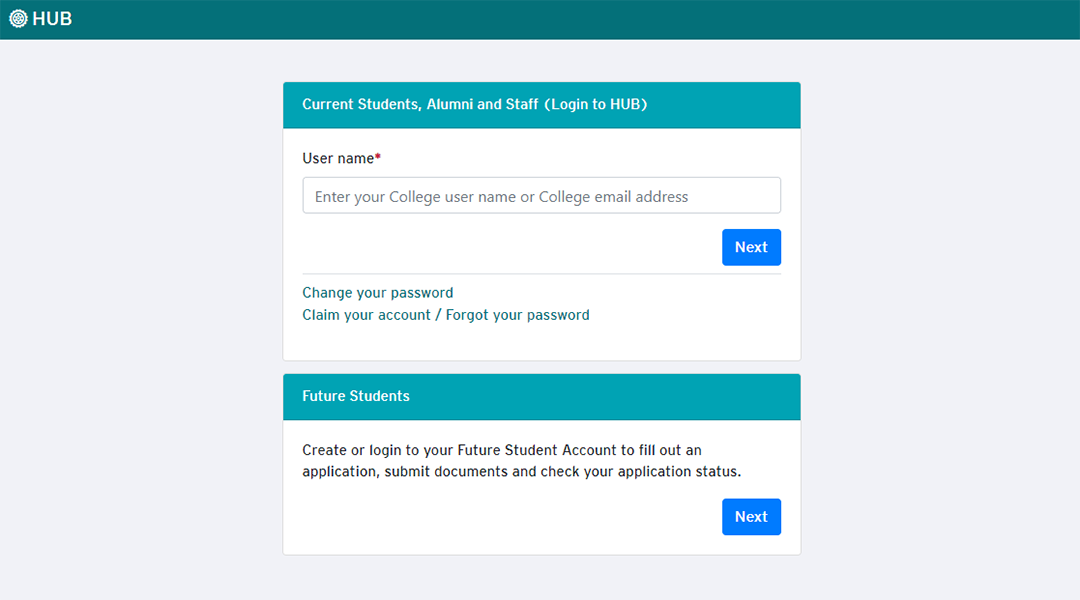
  1. On the HUB home page, on the Login to HUB section, click the Claim your account / Forgot your password link.
    hub login
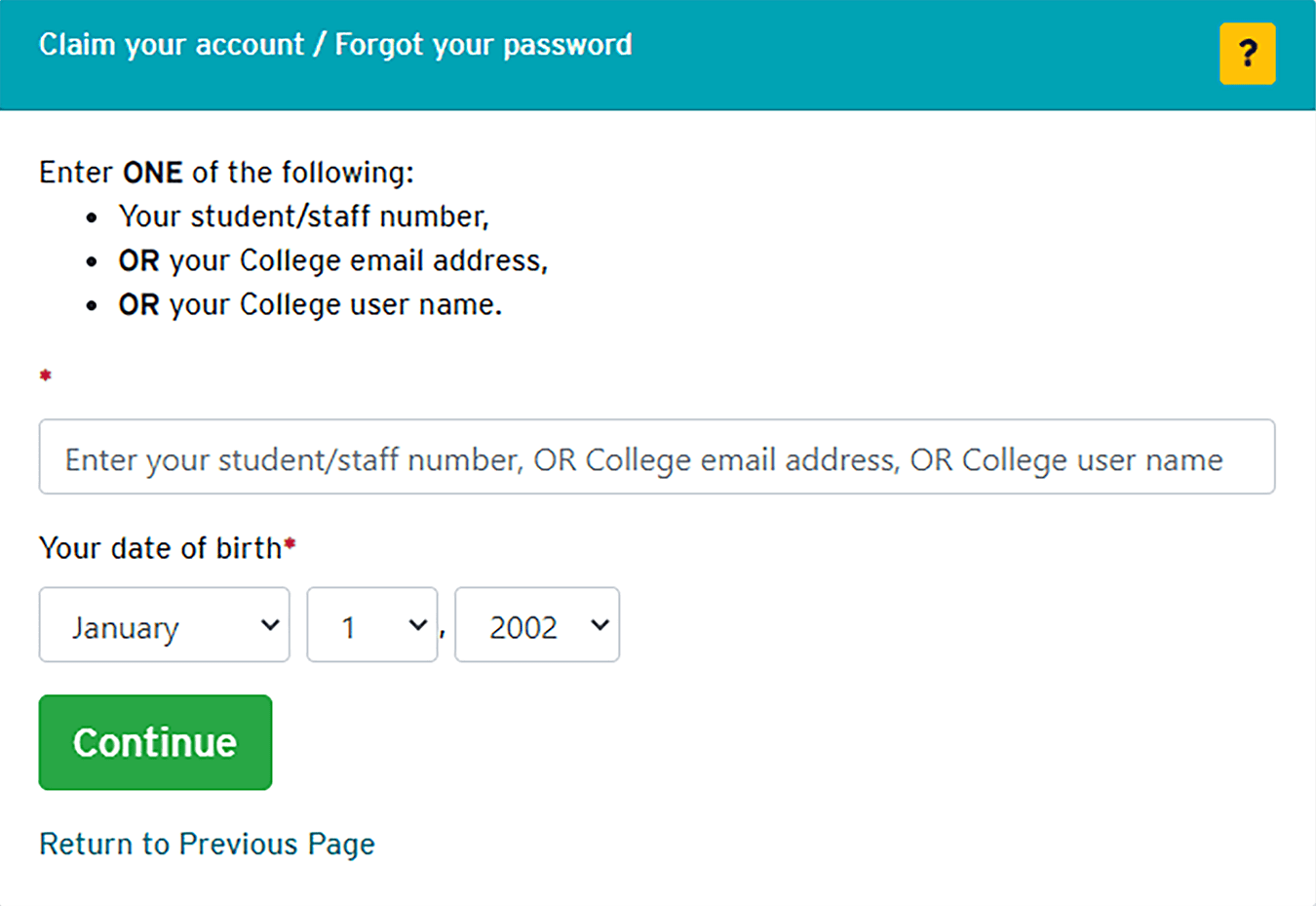
  2. On the Claim your account / Forgot your password window, enter ONE of the three available options so that RRC can verify your identity, then enter your date of birth, and then click Continue.
    claim account / forgot password window
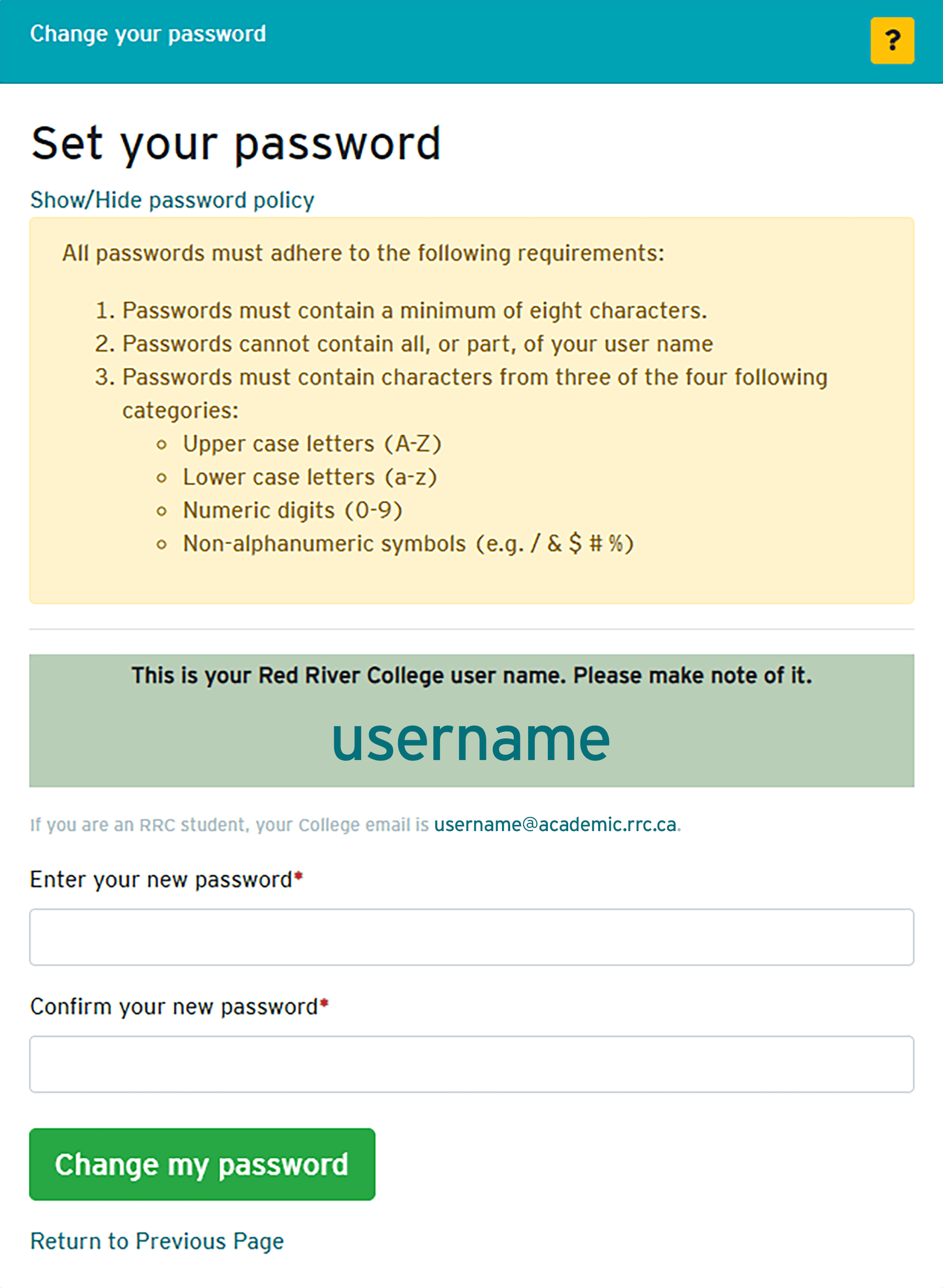
  3. Record your RCC Polytech‑issued user name, enter your new password, confirm your new password, and then click Change my password
    change password policy & user name window

    NOTE: If you are confident that you have entered the correct information in Step 2 and are unable to complete the process, you can contact IT Solutions at servicedesk@rrc.ca for assistance. Please email IT Solutions only when all other methods of accessing your account have been unsuccessful and provide as much detailed information about yourself and your account as possible.
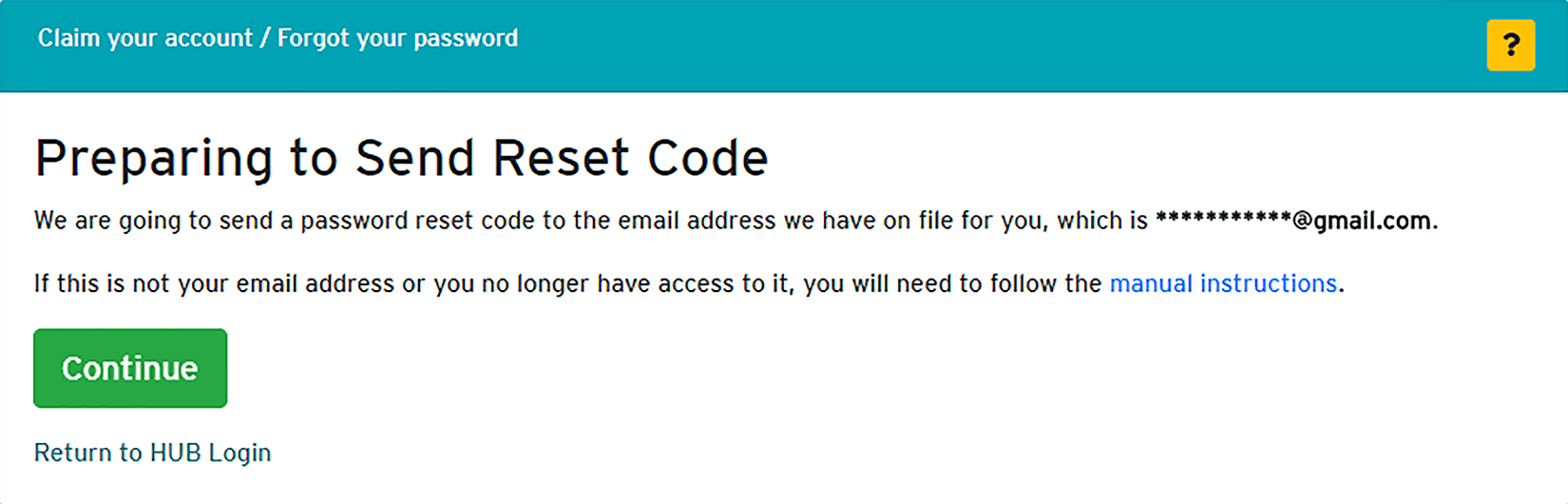
  4. Confirm that your email on file is correct (if it is not, click the manual instructions link), and then click Continue.
    send reset code window
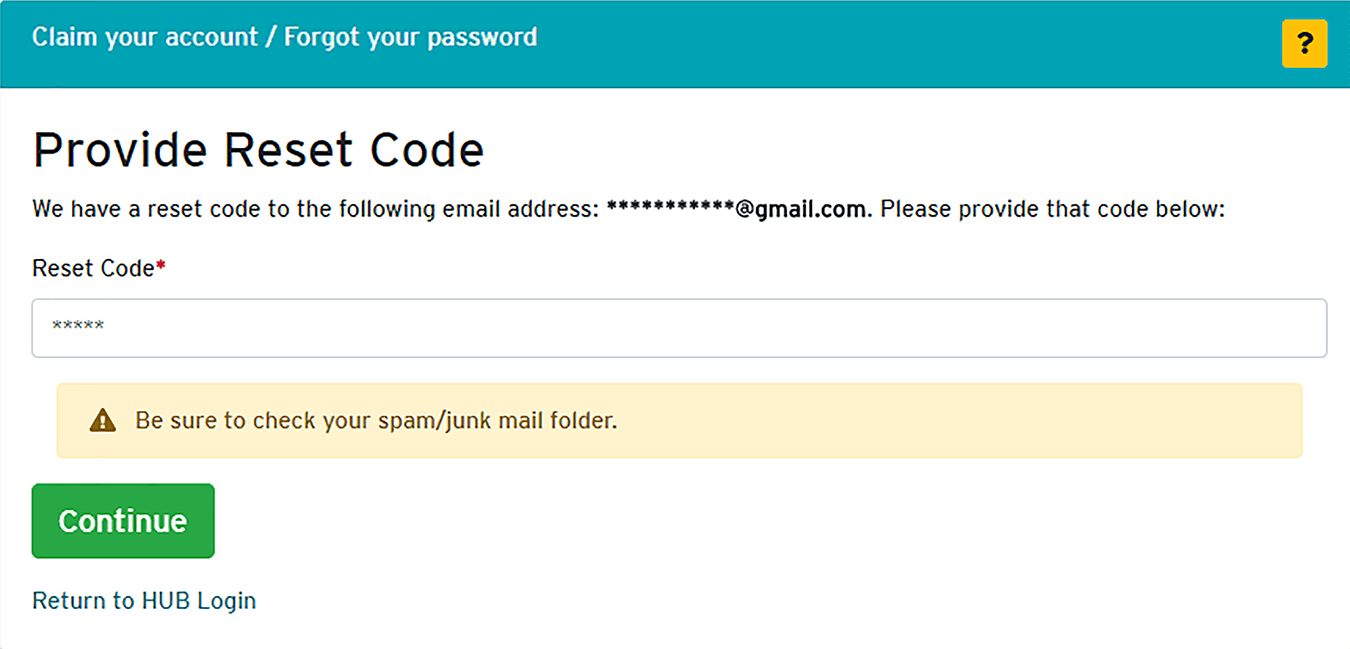
  5. Locate your temporary reset code from the email address identified in Step 4, enter the code into the Reset Code field, click Continue, and when the Change your password window opens, you can reset your password as described in Step 5 of the Change your password section.

    IMPORTANT: Your temporary reset code is valid for only one hour. If you do not use your reset code before it expires, refer to Step 1 to receive a new code.

    provide reset code field
  6. After you have claimed your account for the first time, you must set up your Multi-factor authentication (MFA), using the instructions at the following link:

Change your password

  • If you are already logged on to HUB, refer to Step 1.
  • If you are on the HUB log on page, refer to Step 3.
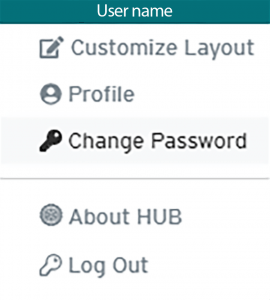
  1. Click the User icon in the top right‑hand corner, and in the drop‑down menu, select Change password to navigate to the Change your password window.
    HUB user profile – change password
  2. Refer to Step 5.
  3. On the HUB home page, on the Login to HUB section, click the Change your password link.
    hub login
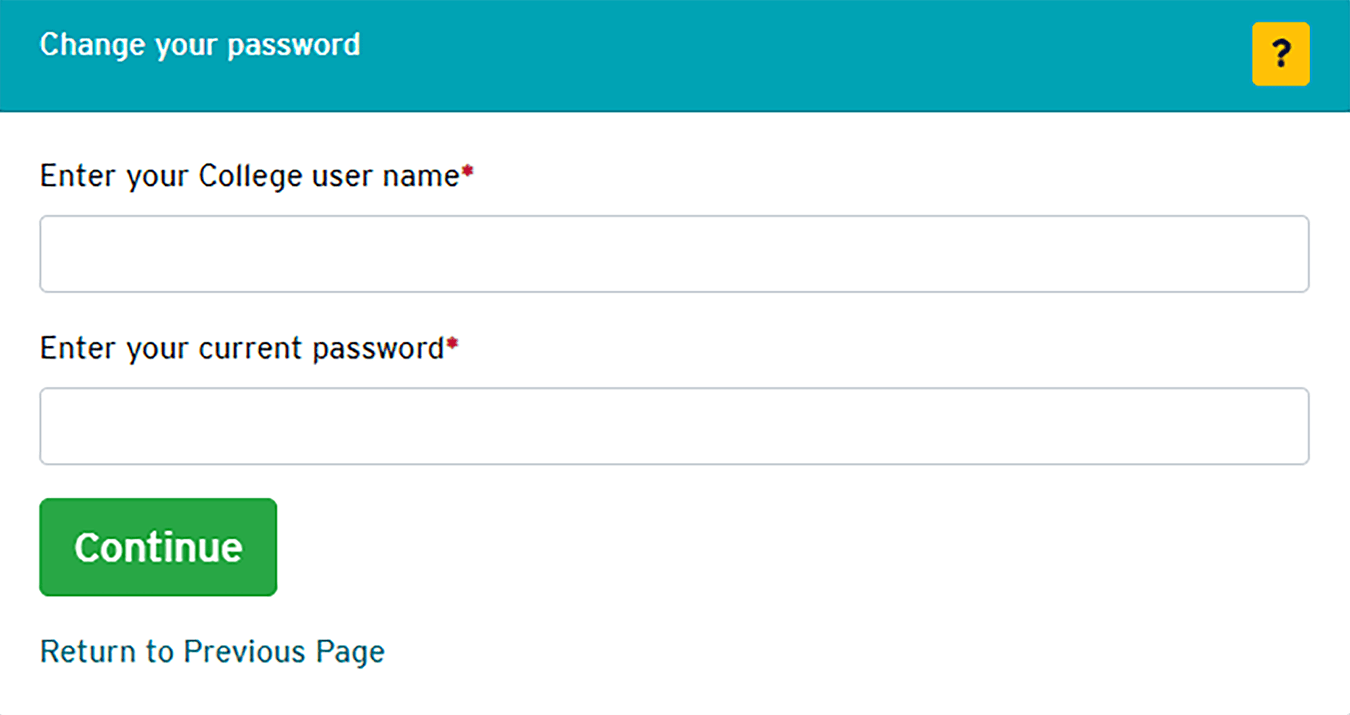
  4. On the Change your password window, enter your RRC user name and RRC password, and then click Continue.
    Change password window
  5. On the Change your password window, click the Show/Hide password policy link to review the password policy requirements, record your RRC‑issued user name, enter your new password, confirm your new password, and then click Change my password.
    change password policy & user name window

    NOTE: If you are changing your password for the first time in HUB, the Set your security questions window will open, click the More information link for tips on choosing effective questions, then enter questions and answers for all three security questions, and then click Change my password.

    To revise your security questions, click the User icon in the top right‑hand corner, and in the drop‑down menu, select Profile.
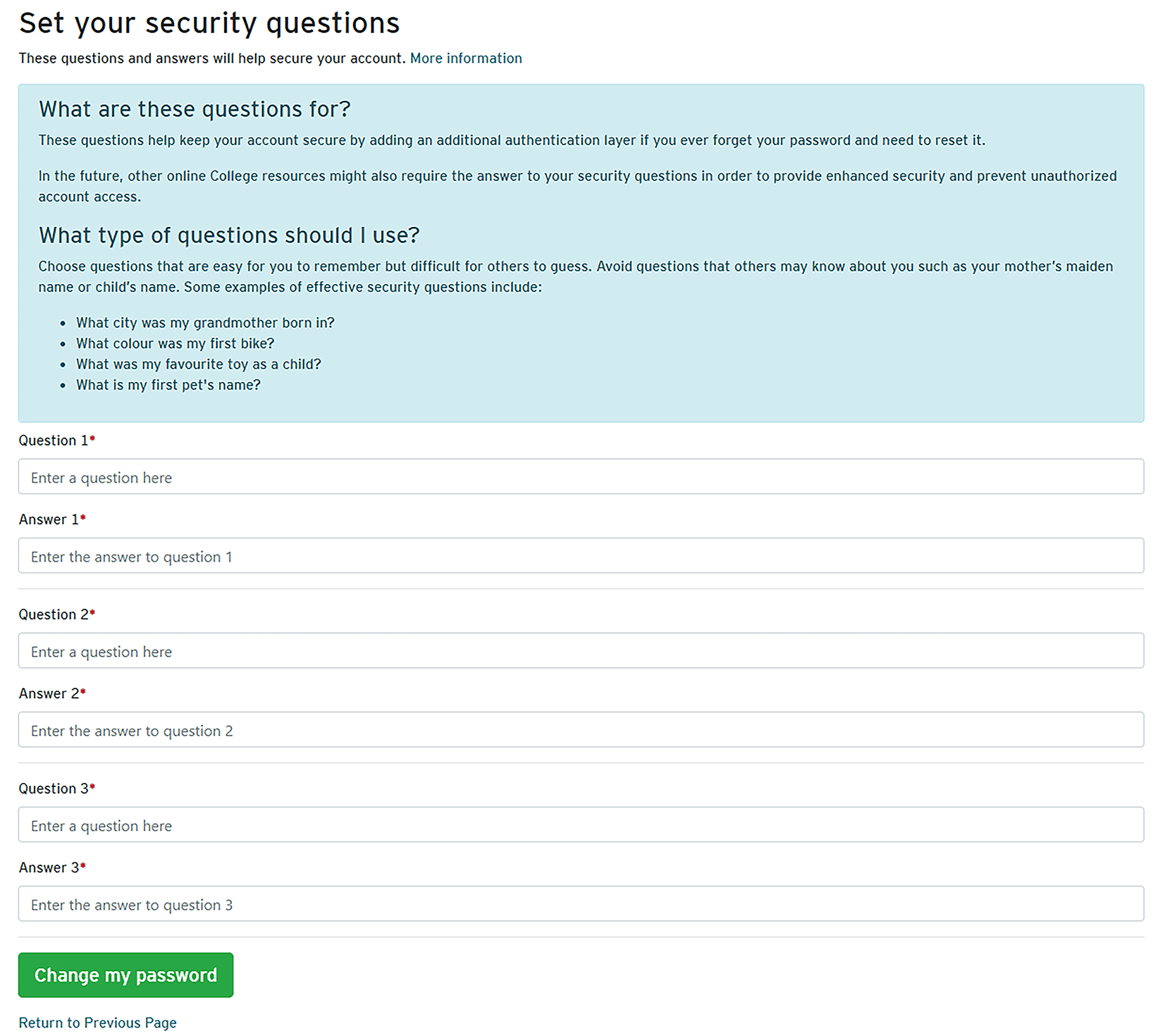

    security questions window

    IMPORTANT: If you have recently changed your password on your computer but have not changed your Wi‑Fi and email account password on your cell phone or laptop, your devices might try to automatically log on using your old password and will be locked out.

    To fix this problem, update your stored password in all locations, wait 30 minutes, and then try to log on again. Please open the Unlock your RRC Polytech account webpage for additional information.


← Back to Passwords

RRC Polytech campuses are located on the lands of the Anishinaabeg, Ininiwak, Anishininwak, Dakota Oyate, and Denésuline, and the National Homeland of the Red River Métis.

We recognize and honour Treaty 3 Territory Shoal Lake 40 First Nation, the source of Winnipeg’s clean drinking water. In addition, we acknowledge Treaty Territories which provide us with access to electricity we use in both our personal and professional lives.