Information Technology Solutions

Company Portal

Company Portal is the location for most applications (apps) available to RRC Polytech staff on their RRC Polytech-issued computer. It provides the way to install, remove, and update software on an easy-to-use interface. This includes Microsoft products and other technical installations through Information Technology Solutions (ITS).

NOTE: Adobe applications can only be installed through Adobe Creative Cloud.

Use the following two links to learn more about Adobe and to install Adobe apps.


Company Portal Highlights

  • It maximizes ITS’s ability to provide installations and updates to thousands of RRC computers.
  • It provides staff with the ability to choose which software to initially install and when to install updates for them.

Before you access Company Portal

IMPORTANT:

  • Close all open programs before attempting to install, update, or uninstall apps in Company Portal.
  • If you are working on campus, ensure you are connected to the RRC network.


Company Portal processes

You can scroll through all of these Company Portal processes or click the following links to navigate directly to the area you need help with.


Open Company Portal

  1. Click on the Windows Search box at your bottom taskbar.
    search
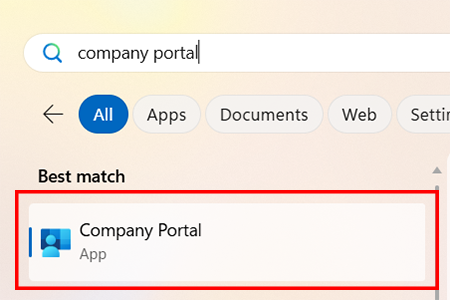
  2. Type Company Portal into your Windows Search box and then click the result under Best Match.
    type company portal

    Company Portal will open on the Home tab on the left side.
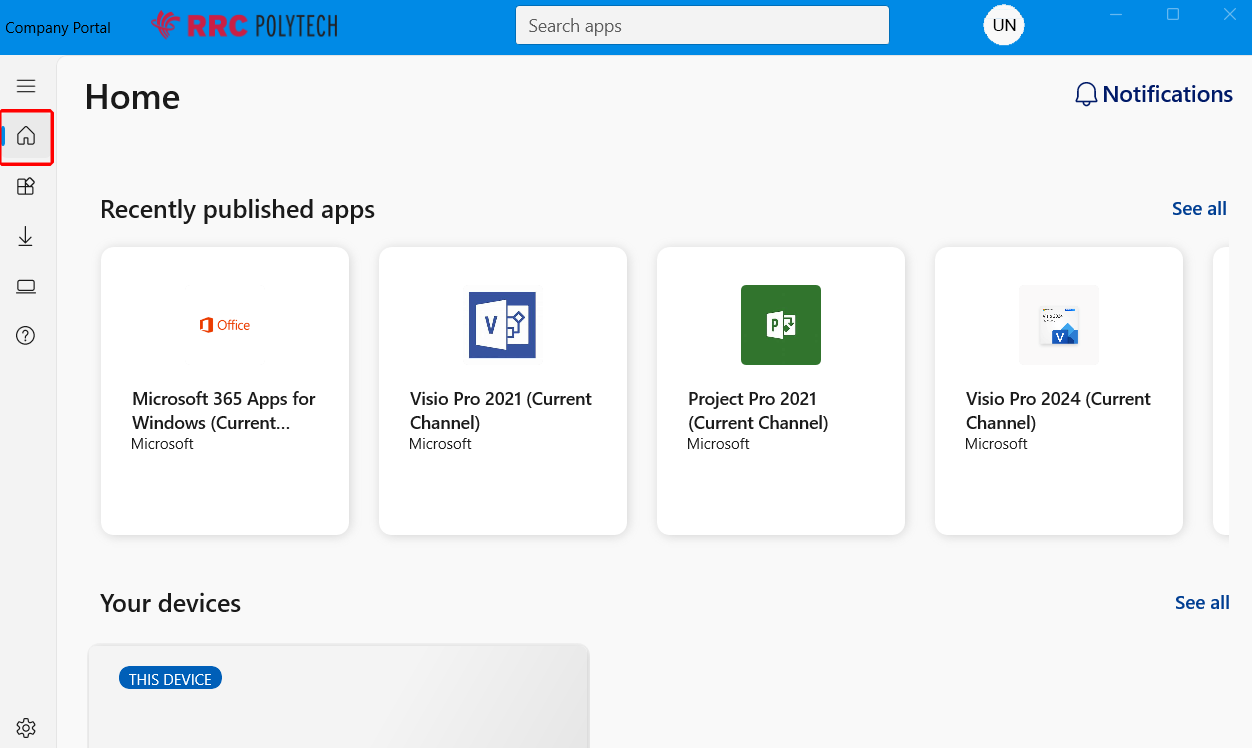
    home tab


Company Portal views

You can choose one of the following two views, whichever is your preference.
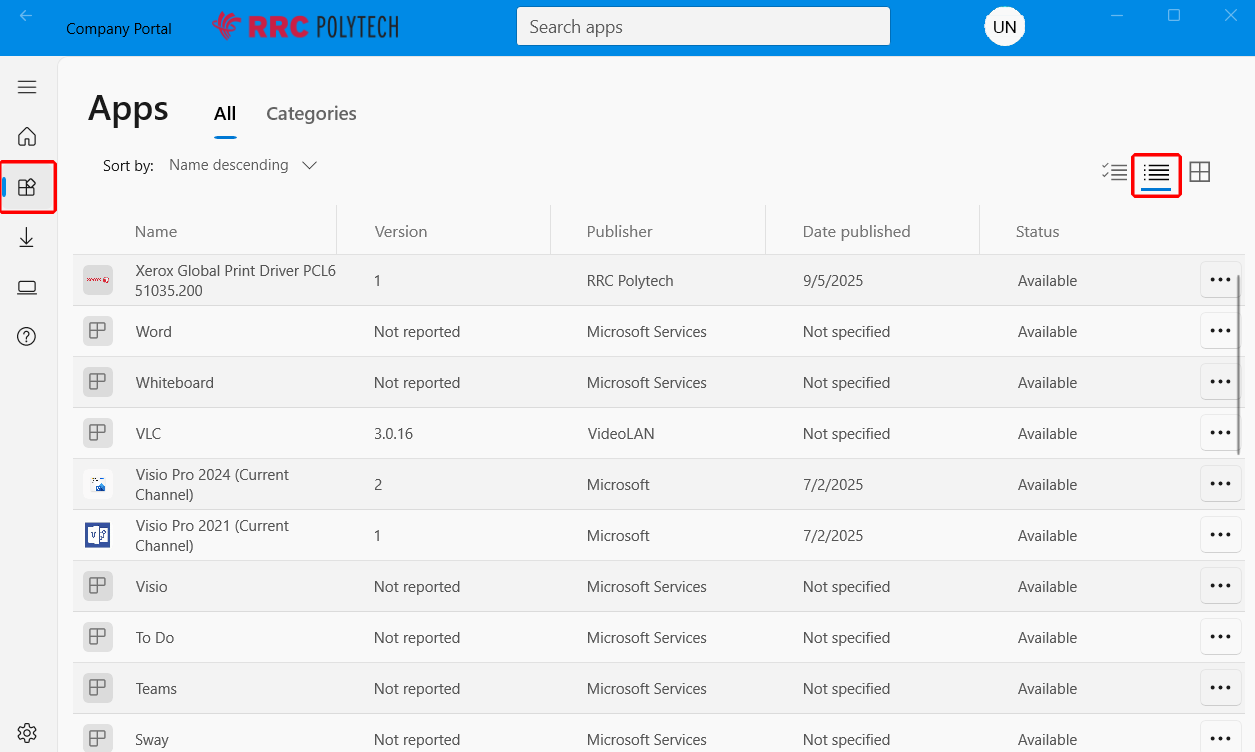
List view

list view

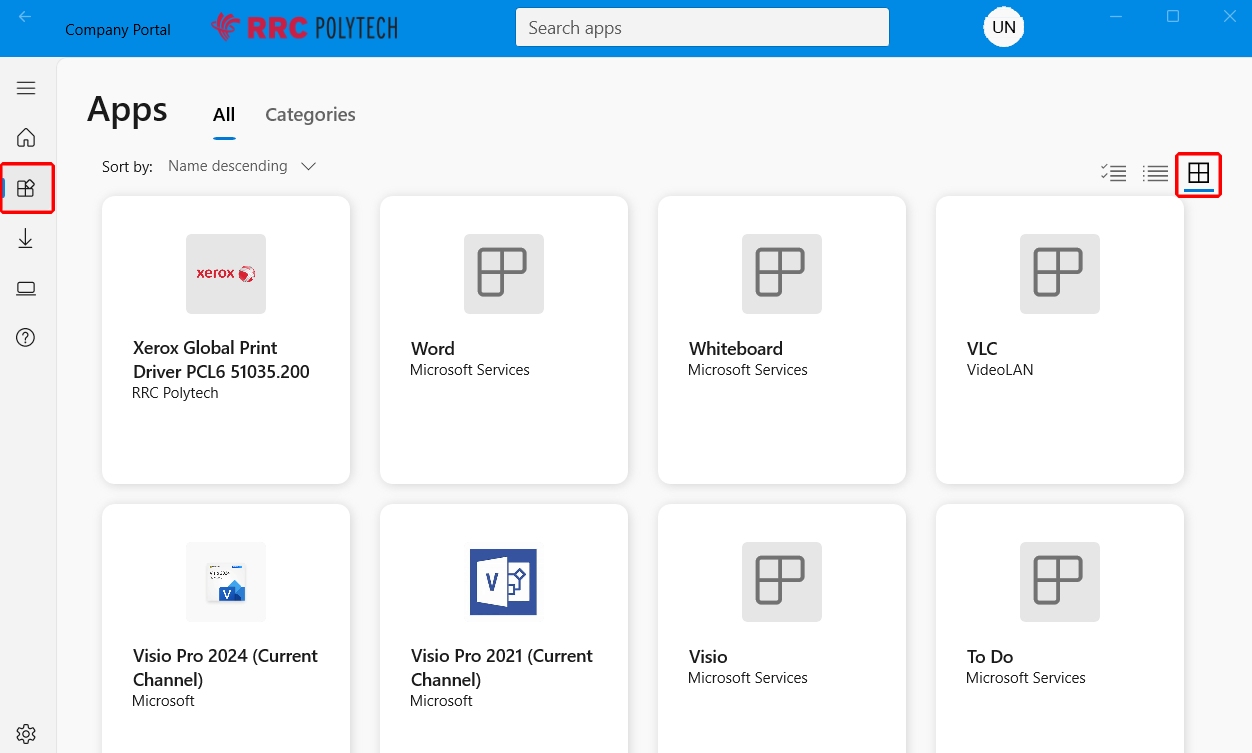
Tile view

tile view


Install an application

NOTE: We used Microsoft Visio 2024 as an example of how to install an application. This is only an example.

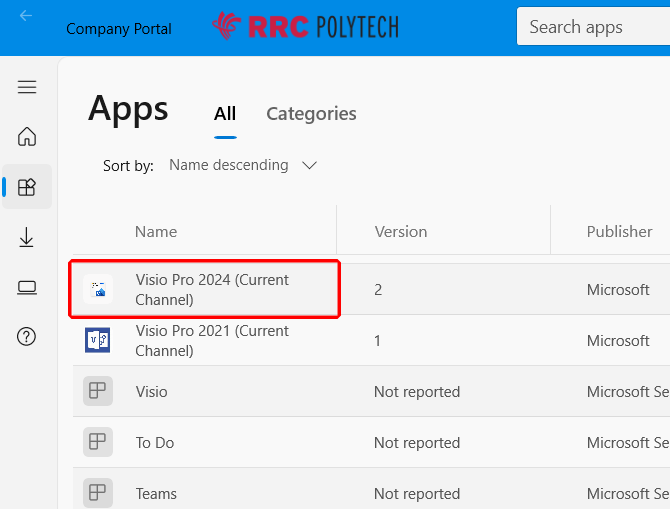
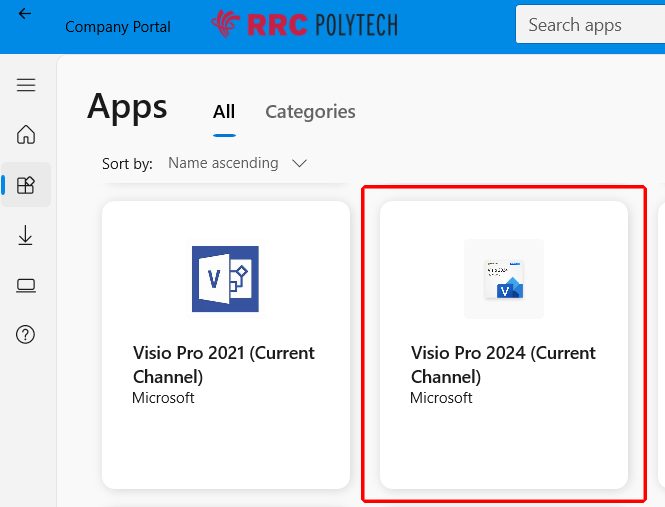
  1. In the specific view chosen, click the Apps tab on the left side, and then search for the app you want to install.

    List view

    apps list view

    Tile view

    apps tile view

    NOTE: Company Portal will indicate if an application is new or if an update to an existing application is available.
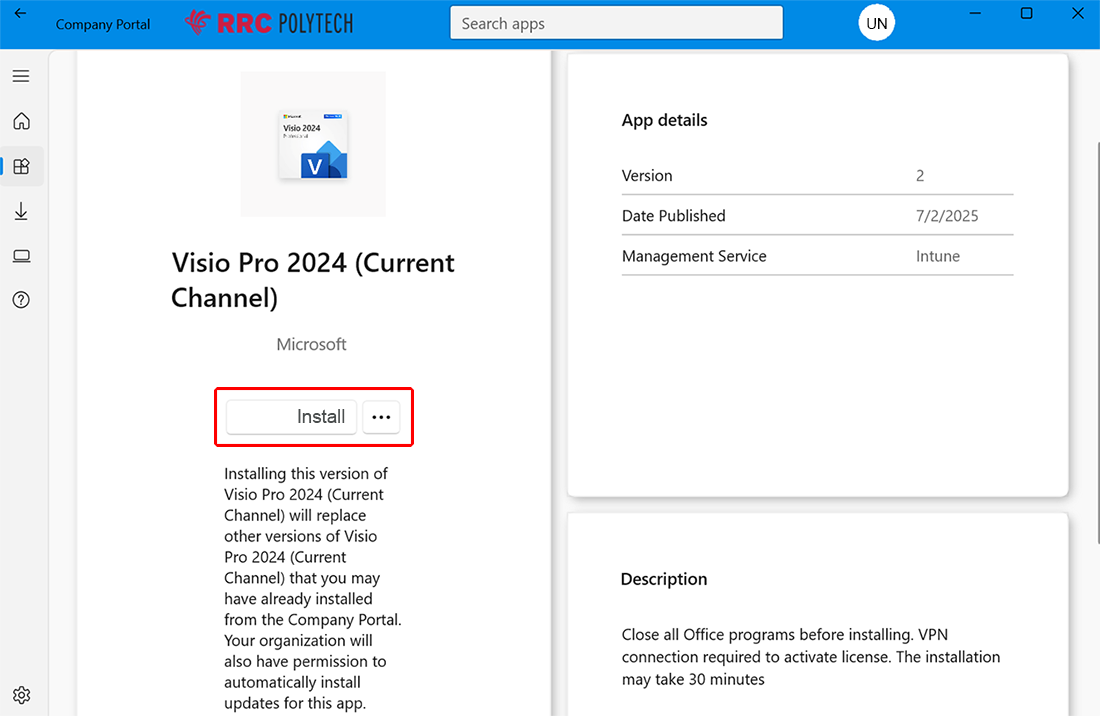
  2. When the smaller app window opens, click Install.
    click install
  3. NOTE: You may receive a message to Close All OPEN Programs. If a program includes this message, you must close all programs before clicking Install, but not all programs will contain this message.

  4. Restart your computer, if necessary.

Review the installation status

On the Downloads and updates tab on the left side, you can review your applications’ statuses.
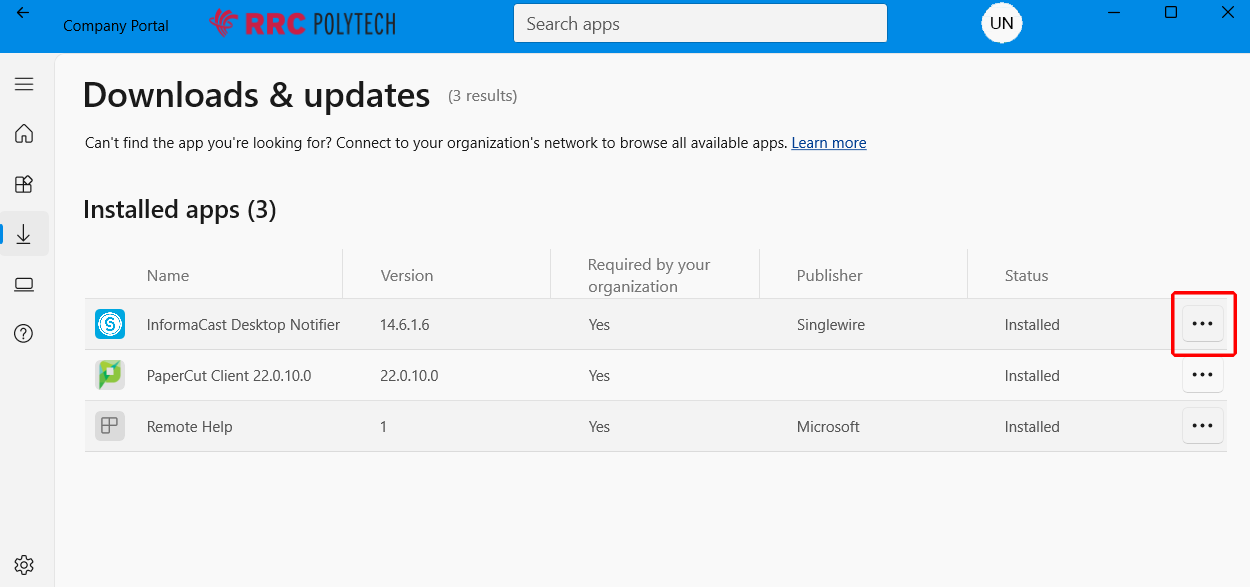
application status


← Back to General Computer Information

RRC Polytech campuses are located on the lands of the Anishinaabeg, Ininiwak, Anishininwak, Dakota Oyate, and Denésuline, and the National Homeland of the Red River Métis.

We recognize and honour Treaty 3 Territory Shoal Lake 40 First Nation, the source of Winnipeg’s clean drinking water. In addition, we acknowledge Treaty Territories which provide us with access to electricity we use in both our personal and professional lives.