Information Technology Solutions

Create View

Creating views allows you to create different ways of organizing your files or items other than the default view. You can create views of your information in your libraries and lists. The other files are still in your library, but they are not visible in these specifically created views.

Benefits

  • Information is categorized according to use.
  • View specific items more easily.
  • Better management of your library or list.

View types

  • Public view is for all members who have access.
  • Personal view is for information that you work with or would want to access frequently.

Create a view

A library has a default view called All Documents; A list has a default view called All Items.

The image below displays the library default view. The files are in one large listing. The default view makes locating a particular file more difficult because it may not be in alphabetical order. This is especially true for libraries or lists with a lot of information.
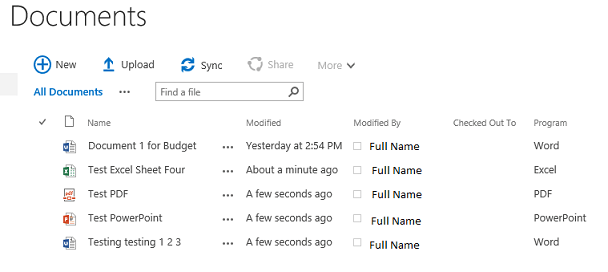
document libary

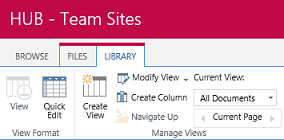
    1. In a library, on the Library tab, click Create View.
      library tab

      In a list, on the List tab, click Create View.
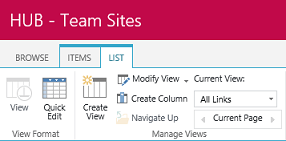
      list tab

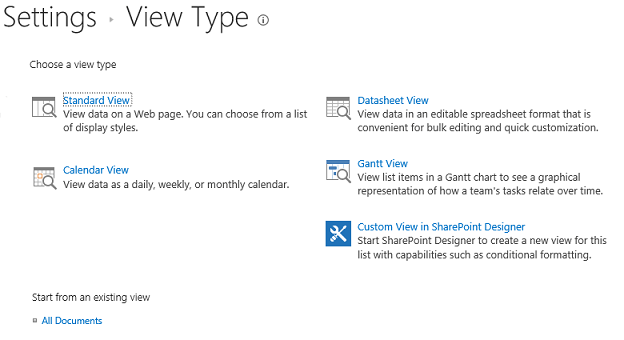
    2. Choose the option that best suits your information from the available view types. The Standard View is most common.
      settings window – view types
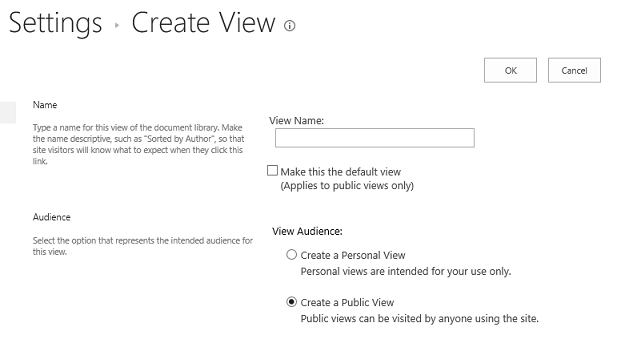
    3. On the Settings – Create View menu:
      • Enter the View Name.
      • Select the audience by clicking Create a Personal View or Create a Public View.
        view audience buttons
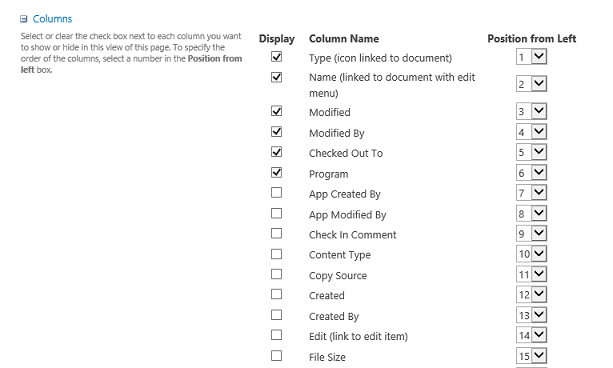
    4. In the Columns group:
      • Choose the columns you would like in your view by selecting the Display check box.
      • Choose the position of the column to indicate the order in which the columns should appear, using the Left drop‑down menu.
        column group
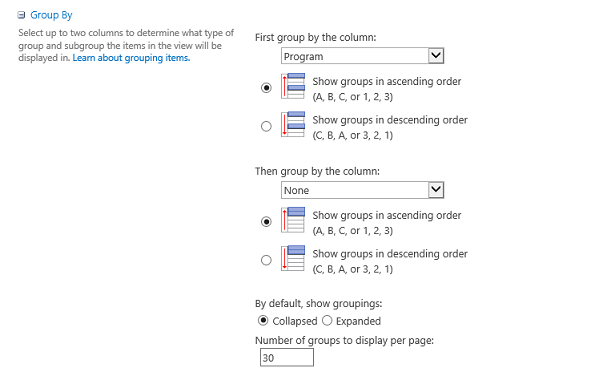
    5. In the Group By section:
      • Use the Group By drop‑down menus to categorize your information using one or two columns.
      • Choose whether to have the information Collapsed and the content hidden or Expanded to show all of the information.
        group by – expand/collapse options
    6. Once complete, click OK.
  • Group by view example

    The new Program View is categorized by the Program column. The categories are Collapsed to display only Excel, PDF, PowerPoint, and Word headings, not the content within.
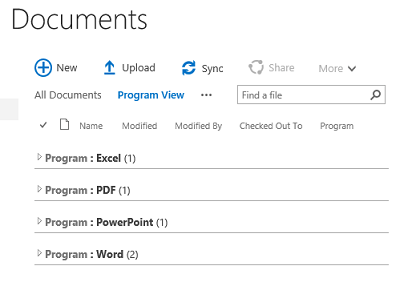
    example library


    Modify an existing view

    You can use Modify View to change the settings of an existing view in a library or list.
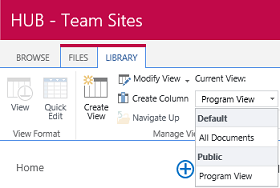
    1. On the Library tab, click the Current View drop‑down menu, select the view you want to modify, and then click Modify View.
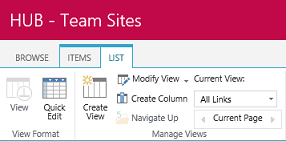
      library tab – current view drop-down – modify view

      On the List tab, click the Current View drop‑down menu, select the view you want to modify, and then click Modify View.
      list tab – current view drop-down – modify view

    2. On the Settings – Edit View menu, you can edit the following options and then click OK when finished:
      • View certain columns
      • Sort information by a column
      • Filter information by specific criteria
      • Group your information by a specific column

      Filter Options

      The following example demonstrates a Filter option that only displays Word files from the Program column.
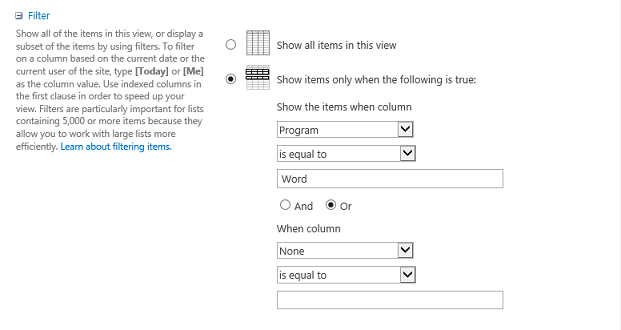
      filter options

      The image below displays the filter option above once it is applied to show only the Word files.
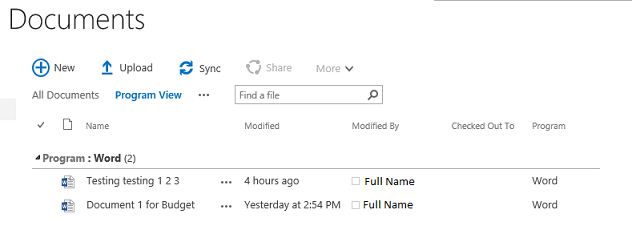
      applied filter option

      Group By

      The example below demonstrates the Group By option, which shows all the file types in the Program column. You can use the Collapsed or Expanded option, but this image depicts an expanded view.
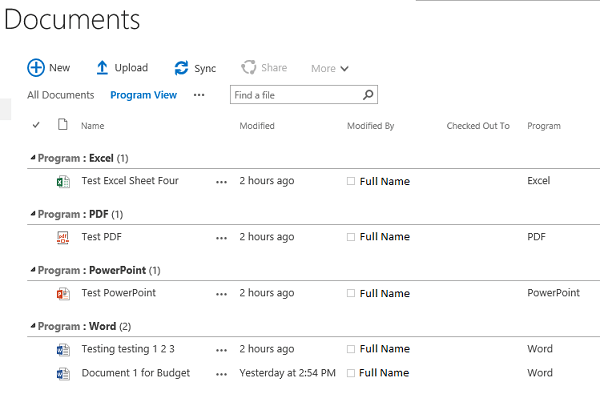
      group by option applied

    NOTE: For additional instructions about categorizing your information, please open the Create Column web page.


    ← Back to SharePoint (teamsites@rrc.ca)

    RRC Polytech campuses are located on the lands of the Anishinaabeg, Ininiwak, Anishininwak, Dakota Oyate, and Denésuline, and the National Homeland of the Red River Métis.

    We recognize and honour Treaty 3 Territory Shoal Lake 40 First Nation, the source of Winnipeg’s clean drinking water. In addition, we acknowledge Treaty Territories which provide us with access to electricity we use in both our personal and professional lives.